Facebook Messenger has been running slow and taking up a lot of storage on my phone. I’m trying to clear the Messenger cache without deleting chats or uninstalling the app, but I can’t find a clear option. Is reinstalling the only reliable way to clear Facebook Messenger cache, or is there another fix?
If Messenger is showing something like 4GB in iPhone Storage, I’d deal with that first, but I wouldn’t expect it to be the whole fix. I’ve been in that “Storage Almost Full” loop too, and Messenger’s Documents and Data can get weirdly huge even when you don’t have some massive chat history.
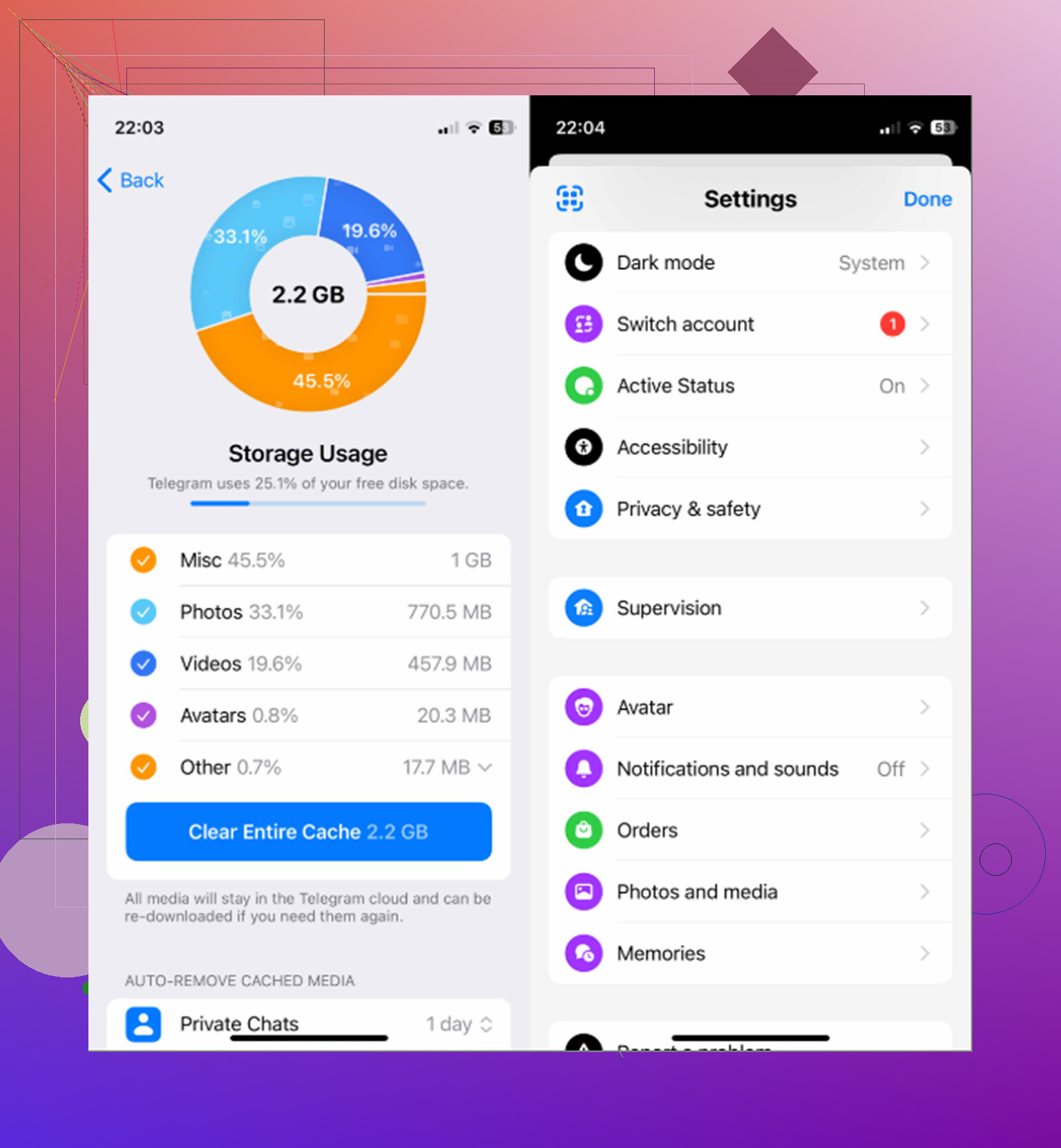
On iPhone, the closest thing to clearing Messenger’s cache is removing the app. There isn’t a normal Android-style “Clear Cache” button for it.
If you want the safer option, go to Settings > General > iPhone Storage > Messenger and choose Offload App. That removes the app itself, but keeps your local documents and login-related data around. When you reinstall it, some temporary junk may be gone, but it’s not a full reset.
If you want the cleanest result, delete Messenger completely and reinstall it. You can do that from the same storage screen or by long-pressing the app icon. That clears the local stuff Messenger has been saving, like cached photos, videos, thumbnails, stickers, and temporary login files.
Your actual conversations should be fine. Messenger chats aren’t stored only in that cache. They’re tied to your Meta account and come back after you sign in again. The part to watch out for is the sign-in itself, so make sure you know your password and have 2FA access before deleting the app. Any media that was cached on your phone gets removed locally, but it can load again when you open that chat later.
The annoying part is that this usually doesn’t stay fixed forever. Messenger rebuilds cache as you use it because that’s how it keeps things loading quickly. Profile pictures, stickers, chat media, all of that starts piling back up again.
In my case, I kept blaming apps and clearing caches, but the real problem was my Photo Library. Old screenshots, repeated shots, random videos, and near-duplicates were eating way more space than Messenger. I only realized it after digging through iPhone Storage more carefully.
Sorting that manually was miserable, so I ended up trying Clever Cleaner. I’m usually pretty suspicious of cleaner apps, since a lot of them are just ads or subscription traps, but this one is actually free. No trial trick, no paywall, no constant ads.
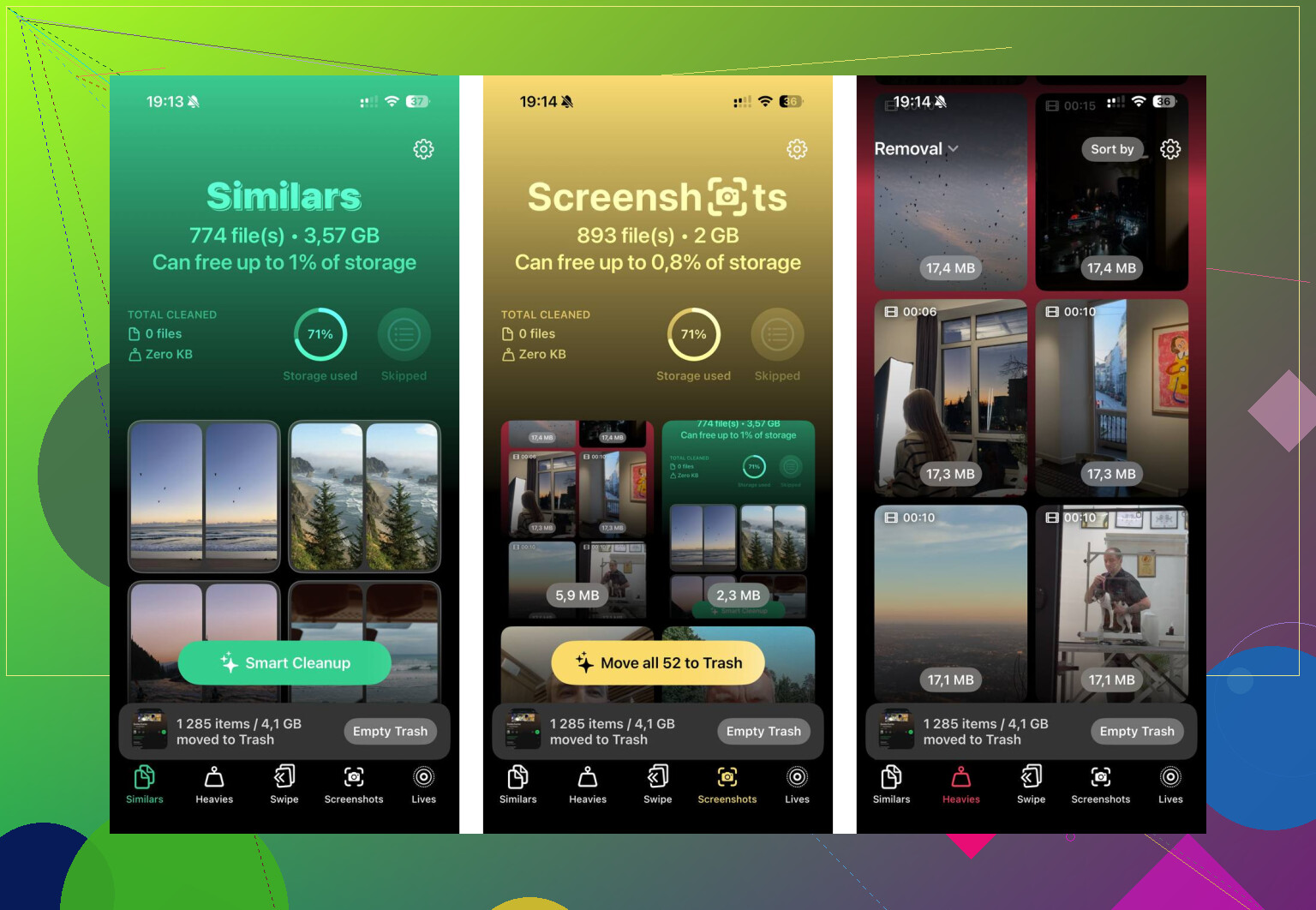
The most useful part for me was the Heavies tab. It sorts your photos and videos by file size, which iOS still makes harder than it should be. That way you can find one giant video taking up hundreds of MB instead of deleting a pile of tiny photos and barely moving the needle.
The Similars tab is also handy. It groups photos that are almost the same, like five versions of the same dog picture where only one is sharp. You can keep the best one and delete the rest pretty quickly. It also has a section for old screenshots, which was another big storage sink for me.
Another reason I liked Clever Cleaner is that it processes everything on the phone. It doesn’t need to upload your photos somewhere just to sort them.
It won’t clear Messenger’s cache, so you’d still need to offload or reinstall Messenger for that. But if you do that and your iPhone is still almost full, there’s a good chance the bigger mess is sitting in your gallery. Clearing Messenger helps for a while. Cleaning out oversized videos, duplicates, and screenshots is usually the fix that actually lasts longer.
8 Likes
Do not delete the app until you know your Messenger PIN or whatever security method it wants for encrypted chats. The old advice that “your chats come back when you log in” is mostly true, but Messenger’s end-to-end encrypted chats can be pickier now. Meta says full encrypted chat history depends on secure storage and the security method you chose, and resetting/removing that storage can permanently lose encrypted history.
So yes, on iPhone, reinstalling is still basically the closest thing to a real cache clear. Offloading is safer but weaker, because iOS keeps the app’s documents/data around by design. Apple’s storage tools are more about removing unused apps and managing space, not giving every app a separate cache button.
My practical order would be: check Messenger opens normally, confirm you can log into Facebook/Meta, make sure encrypted message storage/PIN is set if you care about old chats, then delete and reinstall Messenger. Don’t delete chats inside Messenger and don’t mess with “secure storage” settings thinking that is the same as clearing cache. It isn’t. The reinstall clears local junk; changing message storage can affect message recovery.
If you’re on Android, reinstalling is not the first move.
Go to your phone’s Settings app, then Apps, Messenger, Storage, and try Clear cache first. That should leave your login and conversations alone, because it is only removing temporary files. Do not hit Clear storage, Clear data, or Manage space unless you are prepared to sign back in and possibly reconfigure things. Android gives you more control here than iPhone does, and Google’s own help says app cache and app data are usually separate things in Android settings.
For iPhone, I agree with the others that there is no clean little “clear Messenger cache” button hiding somewhere. Apple’s storage options are basically Offload App, which keeps documents and data, or Delete App, which removes the app and related data. So if Messenger’s “Documents & Data” is the huge part, offloading may barely move the number. Full delete and reinstall is usually the only real reset on iOS.
The small caveat I think people miss is that “taking up storage” and “running slow” are not always the same problem. If Messenger is slow because your whole phone has almost no free space, clearing Messenger might help only because it gives iOS or Android breathing room again. If Messenger is slow because a specific chat is loaded with years of videos, voice notes, GIFs, marketplace messages, or group chat spam, it may rebuild a lot of that preview/cache stuff after you open the same chats again.
I would not delete actual conversations from inside Messenger just to save phone storage unless you truly want them gone. That is different from clearing local app junk. Same with encrypted message storage: leave that alone unless you understand what it does. Meta says restoring full encrypted chat history depends on secure storage and the security method you set, and deleting secure storage can permanently remove encrypted history from recovery.
A low-risk order would be:
Check that you know your Facebook/Meta password and can pass 2FA.
If you’re on Android, clear cache only.
If you’re on iPhone, try offloading if you want the cautious route, but don’t expect miracles.
If the storage number is still ugly, delete Messenger and reinstall.
After reinstalling, open only the chats you actually need at first instead of immediately scrolling through old media-heavy threads.
That last bit sounds silly, but Messenger will happily start pulling thumbnails, previews, stickers, and media again as you use it. A reinstall clears the local mess. It does not teach Messenger to stop making a new one.
Picture two phones side by side. One has barely a gig of free space left, Messenger crawls, and clearing anything at all makes it feel snappier for a day. The other has 40GB free and Messenger still stutters. Same app, totally different problem. The first is a space issue. The second is Messenger just being Messenger, and no cache wipe fixes that for long.
That distinction is what I think gets glossed over above. @jeff touched on it, but I’d push it harder: if your phone isn’t actually near full, deleting and reinstalling is mostly a placebo. You’ll clear a few hundred MB of thumbnails, feel good, and be back where you started in a week. Reinstalling treats the symptom on iOS because Apple genuinely gives you nothing better, not because it’s a real fix.
The warning from @nachtschatten about encrypted chat storage is the one part I wouldn’t skim past. That’s the thing people learn the hard way. If you set up a PIN for secure storage and don’t remember it, a reinstall can leave you staring at chats you can’t restore. Sort that out before you touch anything, not after.
On the cleaner app that came up, it’s a fair shout for the storage half of this, and if the real culprit is your camera roll then yeah, Clever Cleaner or honestly just sorting iPhone Storage by size yourself will move the needle way more than poking at Messenger. But keep the two jobs separate in your head. A photo cleaner does nothing for an app that feels laggy despite plenty of free space.
If I were you I’d do the cheap check first. Look at Settings, General, iPhone Storage and see how much free space you actually have. Under 5GB or so, clearing space matters and reinstalling Messenger is worth it. If you’ve got tons free and it’s still slow, the reinstall buys you almost nothing, and I’d look at whether one giant group chat or your media auto-download is the thing dragging it down instead.