I’m trying to recover photos that suddenly disappeared from my camera’s CF card after a shoot. The card was working fine, but now the images are missing and I’m worried they may have been deleted or the card may be corrupted. I really need help with safe CF card photo recovery steps or software recommendations so I don’t make things worse and can hopefully get the pictures back.
I had this happen after a paid shoot, and yeah, the feeling sucks. You get home, plug in the CF card, and your computer acts like it has never seen it before. Or half the files are gone. I’ve recovered cards in worse shape than that, so don’t do anything rash yet. If the CompactFlash card isn’t physically smashed or waterlogged beyond repair, your photos and clips still have a decent shot.
What to do first
Do these three things before you touch any recovery app.
- Stop using the card. Take it out of the camera. No test shots. No dragging files onto it. Every write puts old data at risk.
- Do not format it. If Windows or macOS says the card needs formatting, ignore it. Clicking through there makes the recovery job worse.
- Use a real CF reader. Don’t connect the camera with USB and expect solid results. I tried that once. Bad idea. You want the card mounted through a dedicated reader so the recovery tool sees the storage device itself.
Check whether the computer sees the card
On Windows, open Disk Management. On Mac, open Disk Utility. You’re looking for one simple thing, the card showing up with roughly the right capacity.
If it appears there, even if the partition looks damaged, you still have a path forward at home.
If it does not appear at all, or the card has physical damage, then software won’t do much. At that point, a lab is the next step, such as the CleverFiles data recovery center.
About recovery software
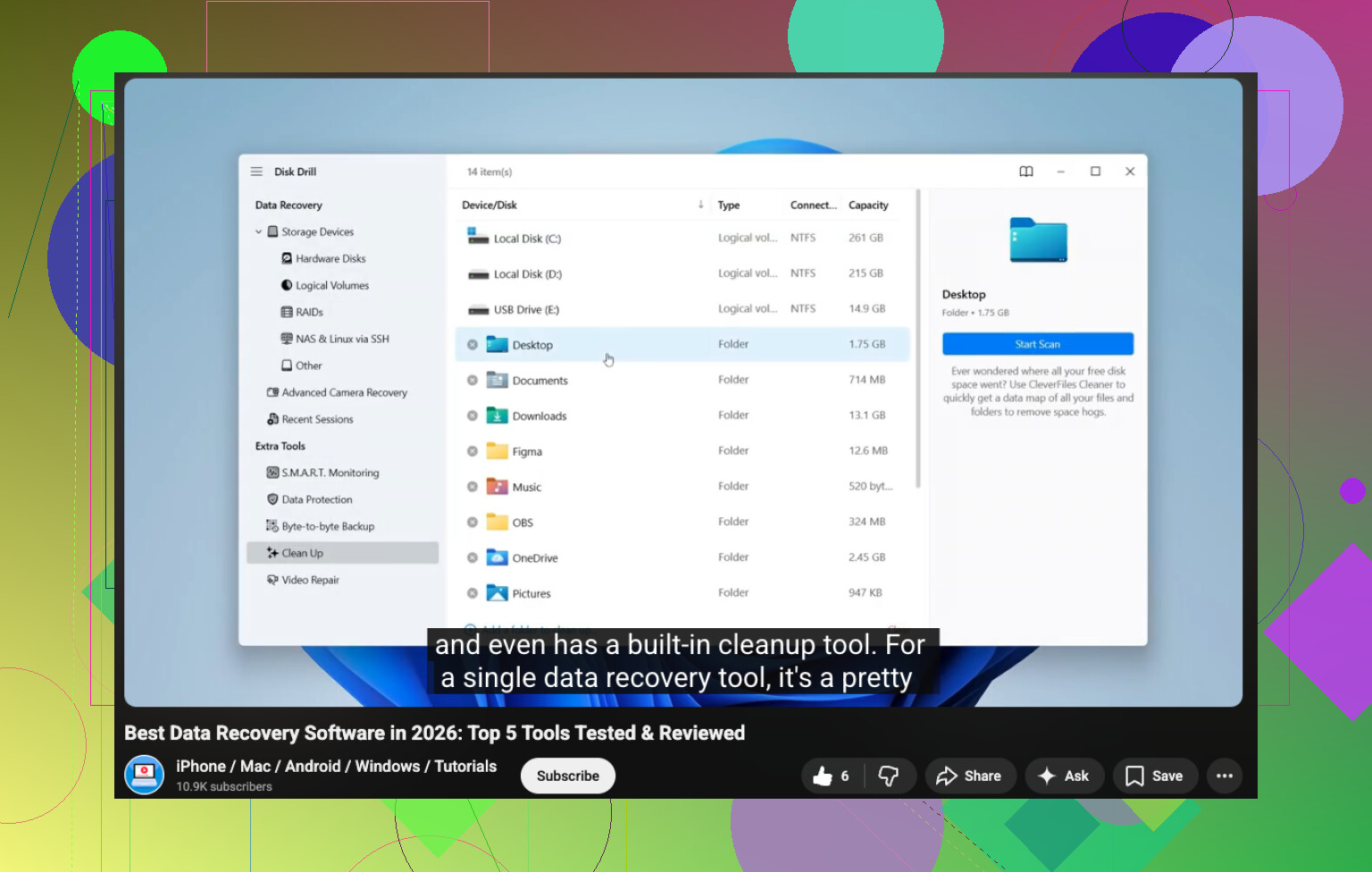
If the system detects the card, software is the usual move. There’s a YouTube walkthrough here if you want to watch the process first:
I’ve tried a few tools over time. The free ones are hit or miss.
PhotoRec finds files, sure, but the workflow is rough. It throws recovered stuff into generic folders, strips names, and turns sorting into a mess. Recuva is easier, though I’ve had weak results with RAW formats from Nikon and Canon bodies.
Disk Drill has been the least annoying option in my use. Preview helps. Support for camera file types is better than what I got from most free tools. I used it on CR2, NEF, ARW, and some large video files off older Lexar cards.
The process I follow
- Install the recovery app on your computer drive. Not on the CF card. Sounds obvious, but people do it.
- Make a full image of the card first if it looks unstable. A byte-for-byte backup gives you a safer source to scan. If the card starts failing harder during recovery, you still have the image.
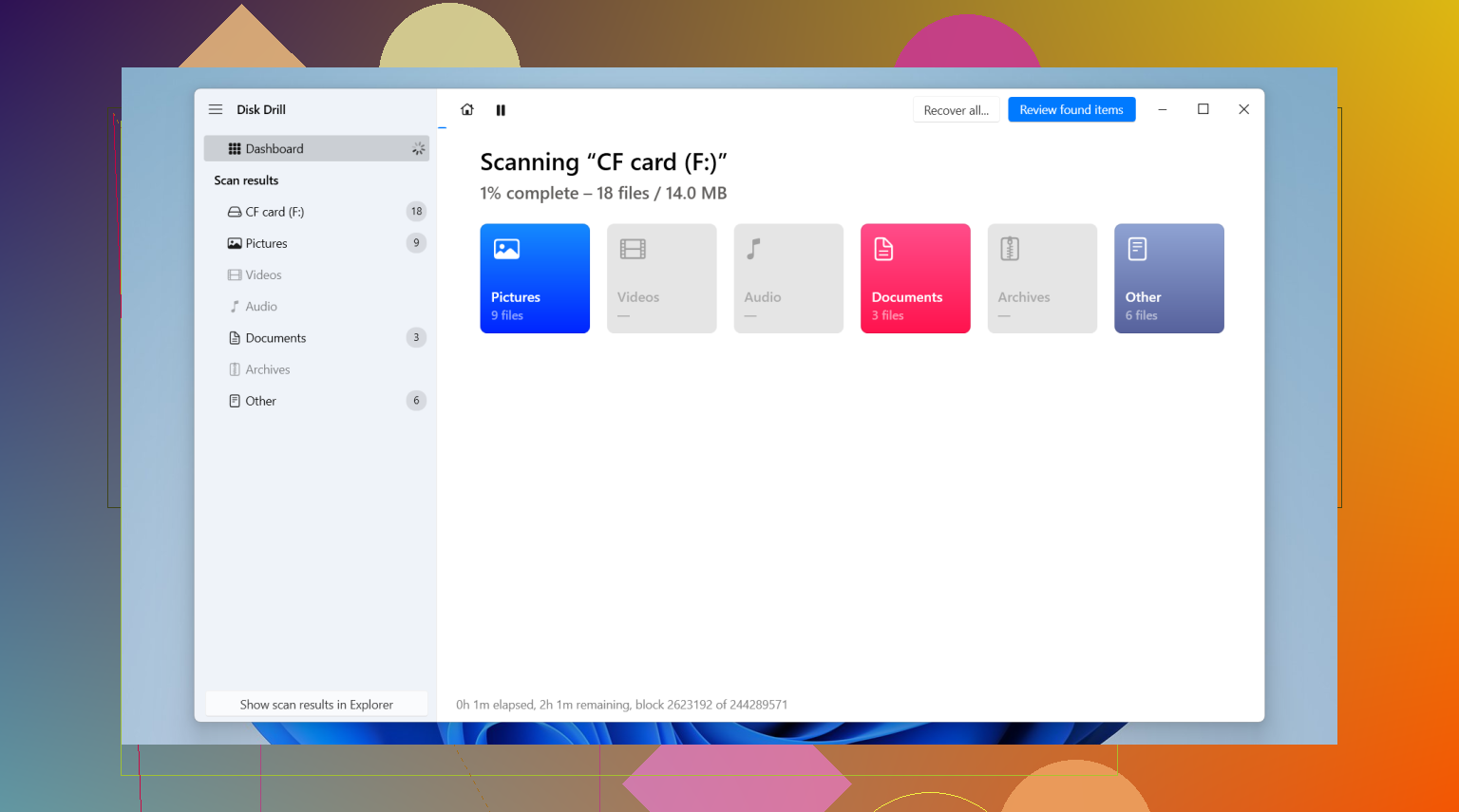
- Scan the card or the image. Let it finish. Don’t cancel early because the first pass looks empty.
- Preview what it finds. Open images. Scrub through videos. A filename means nothing if the file is broken.
- Restore the recovered data somewhere else. Save to your internal drive or an external SSD. Never write the recovered files back onto the same CF card.
If your video files come back weird
I ran into this with event footage once. The clips recovered, but a few wouldn’t open cleanly.
VLC sometimes fixes damaged video containers if you change the input and codec behavior to repair broken files automatically. On Windows, Untrunc is worth a look too. It can rebuild headers if the file body is there but the front end is trashed.
What to do with the card after recovery
Only mess with the card after your files are safe in two places.
Then, if you want to test it, run CHKDSK on Windows or First Aid on Mac. If errors keep showing up, I wouldn’t trust the card for paid work again. If it looks stable, format it in the camera, not on the computer.
Short version, stop writing to it, don’t format, use a card reader, confirm the card is visible in Disk Management or Disk Utility, then recover files to another drive. That order matters more than people think.
Hope you get your shots back. I’ve been there, and moving slow helped more than anything.
1 Like
One thing I’d add to what @mikeappsreviewer said, check the camera before you assume the card ate your files. I’ve seen bodies lose track of the directory, then the shots still show up once the card goes into a reader. If the camera says 0 images but used space on the card looks about right, that points more to file system damage than true deletion.
My order would be this.
- Put the CF card in write protect mode if your adapter has it.
- Try a second card reader. Bad readers cause a lot of fake “corruption” cases.
- Check used space vs free space. If a 32GB card shows 28GB used, your data is likley still there.
- Make an image of the card first. I care more about this step than repair tools.
- Scan the image with Disk Drill or another recovery app.
I slightly disagree on running CHKDSK early. Don’t. It rewrites metadata and sometimes makes photo recovery worse. Save repairs for after recovery, or skip them and retire the card.
For photo work, Disk Drill tends to do better with RAW and folder reconstruction than older free tools. If you want a fast visual walkthrough, this CF card photo recovery video guide is easy to follow.
If the card shows the wrong capacity, drops offline, or gets hot, stop. That’s lab territory, not home fix teritory.

I’d actually add one thing @mikeappsreviewer and @himmelsjager only touched on a little: check whether the files are just hidden or the DCIM folder got scrambled. I’ve seen CF cards where the camera showed nothing, Finder/Explorer showed nothing, but the space was still used and the image files were sitting there with busted attribtues or orphaned entries.
A couple things I would not do yet:
- don’t run any “repair” option the camera offers
- don’t let Windows “scan and fix”
- don’t trust the first empty folder view
If the card mounts, try viewing hidden files first. On Windows, attrib -h -s /s /d X:\*.* sometimes brings stuff back into view if it’s just a directory/attribute problem. That’s lower impact than jumping right into filesystem repair. I know some people go straight to recovery software, but sometimes the pics were never really deleted.
If that fails, yeah, image the card and scan the image. I do agree there. Disk Drill is one of the better choices for CF card photo recovery because it handles RAW formats decently and lets you preview before restoring. I’d recover to a different drive, then compare file counts and sizes, not just filenames.
One more practical thing: if your camera wrote sidecar files or tiny JPEG previews, recover those too. They can help you figure out what’s missing.
Also, this thread on CF card data recovery software recommendations for missing camera photos is worth a read.
If the card disconnects randomly, reports the wrong size, or makes the reader freak out, stop messing with it. That’s usally where DIY turns into data loss.
Small thing I’d check that @himmelsjager, @sterrenkijker, and @mikeappsreviewer only partly circled around: was the camera set to record to a different folder number or a weird file numbering mode? Some bodies “lose” the current folder and make it look like the card is empty when the files are actually under another DCIM subfolder.
I slightly disagree with trying attribute fixes too early if the card is acting flaky. If the reader drops connection even once, skip clever tweaks and go straight to a sector image.
My approach after confirming the card is detected:
- read the card in Linux if possible, because it tends to mount damaged FAT volumes more quietly
- copy only a raw image first
- inspect that image for JPEG headers and RAW signatures before doing broad recovery
- then run Disk Drill on the image, not the original card
Disk Drill pros:
- good RAW/photo format support
- previews are actually useful
- easier sorting than barebones tools
Disk Drill cons:
- not the cheapest option
- deep scans can return lots of duplicates
- folder structure recovery is not always perfect
One more practical tip: if you recover both full RAWs and embedded JPEG previews, compare timestamps. That often tells you whether files are truly missing or just partially damaged. If the card has ever thrown a CF error in-camera before this, I’d retire it even if recovery works.