My hard drive started showing bad sectors, and now some important files won’t open or copy. I’m trying to figure out whether data recovery software can still recover files from bad sectors or if the drive is too far gone. I need help choosing the safest next step before I make things worse.
CRC errors and folders that never open, what I did first
I ran into this once with an old HDD, and the worst move I made at first was letting it stay online while I kept retrying reads. If your drive is throwing ‘cyclic redundancy check’ errors, or Explorer locks up when you open a folder, stop touching the drive now. If it is your boot drive, power the PC off. If it is external, unplug it.
Why so blunt about it. Because each retry makes the drive work harder. The OS keeps asking for the same sectors. The drive firmware keeps trying to recover them. If the disk is already weak, all of this extra reading wears it down fast. I saw a drive go from flaky to unreadable in one evening.
What is usually going on
From what I’ve seen, these cases split into two buckets.
Soft bad sectors, or logical damage.
This is when the stored data no longer matches its error correction info. Sudden power loss, hard shutdowns, flaky USB power, stuff like that. The surface of the disk might still be fine.
Hard bad sectors, or physical damage.
This is wear or damage on the platter, or a head problem. Software does not heal physical damage. At best, it helps you avoid those damaged areas and pull out what still reads.
Do not start with CHKDSK
A lot of people jump straight to repair tools. I would not.
CHKDSK tries to make the filesystem consistent again. Its goal is not ‘save every file.’ Its goal is ‘make this volume mount and behave.’ Those are not the same thing. I’ve seen file entries get dropped during repair, which made later recovery worse, not better.
The safer move is to clone the drive first, sector by sector, or create a full disk image. One careful pass. Copy what still reads onto a good drive. Then stop using the bad one and do the rest from the copy.
The approach I’d use for DIY recovery
If you’re doing this yourself, I’d start with imaging software built for failing disks. One option is Disk Drill.
What stood out to me with newer builds, v6 in particular, was the backup side, not the deleted-file scanning. On unstable drives, the useful part is how it handles unreadable areas. A lot of tools stall, hang, or keep hammering the same bad region. This one tries to move past bad blocks, grab easy data first, then circle back with smaller reads. That matters. Less repeated stress on the drive, better odds of getting more files before the hardware gets worse.
Basic workflow
- Get a healthy destination drive with enough free space.
- Make a byte-for-byte image of the failing drive.
- Mount or attach the image in the recovery tool.
- Scan the image, not the original disk.
- Recover files to a different drive, not the image source and not the failing disk.
That middle step is the whole point. You want the bad drive powered off as much as possible.
When software is the wrong move
There is a line where DIY stops making sense.
If you hear clicking, grinding, beeping, or the drive does not spin up, stop. Same if it keeps dropping off the system bus or vanishes from BIOS. At that point I would not keep testing. Mechanical failure is a different problem.
If the data matters, family photos, tax archives, client work, old project repos, send it to a lab. Places like Gillware or Techchef deal with head swaps, platter issues, firmware trouble, and they use dedicated hardware normal PCs do not have. It costs money, often somewhere around $500 to $3,000 from what I’ve seen, but that is the lane for drives regular software won’t read.
After the files are safe
Once your recovered files are copied out and you’ve opened a sample of them to confirm they are not corrupted, then you can mess with the original drive if you still want to. Full format, not quick format, or chkdsk /r in PowerShell, will mark bad areas so the filesystem avoids them.
Still, I would not trust a drive after CRC errors and hanging reads. I kept one around once for throwaway transfers. Even then it felt dumb, and it died a few weeks later.
What I changed after this
I started doing 3-2-1 backups because I got tired of learning this lesson the hard way.
- 3 copies of your data
- 2 different storage types
- 1 copy off-site or in cloud storage
It takes some setup. It is still easier than trying to rescue a dying disk at 1:30 a.m. with a folder stuck on ‘calculating.’
6 Likes
Yes, software sometimes recovers data from bad sectors. It depends on what failed.
If the sector is weak but still readable after retries, recovery software might pull the file. If the sector is gone or the head is failing, software hits a wall. Then you get partial files, CRC errors, or freezes.
I agree with @mikeappsreviewer on one big point, stop normal copy attempts. I slightly disagree on one thing, not every bad sector case means instant lab work. If the drive still shows up stable in BIOS and does not click, a careful DIY pass still makes sense.
What matters is file type. A photo with one bad area might open with a glitch. A ZIP, database, PST, or video project often fails hard from a tiny unreadable chunk. So “recoverd” does not always mean “usable.”
My order would be:
-
Check SMART with CrystalDiskInfo.
If you see reallocated sectors, pending sectors, or uncorrectable errors rising, the drive is getting worse. -
Image the drive once.
Use something made for weak disks. Disk Drill is fine for this, especially if your goal is to recover files from bad sectors without pounding the drive over and over. -
Work from the image.
Do not scan the sick drive ten times. That’s where people lose more data. -
Validate recovered files.
Open docs. Scrub videos. Test archives. Don’t assume copied = fixed.
If the drive clicks, disappears, or reads at 0 KB/s with long hangs, stop DIY. That’s lab territory.
Also, this explainer on how bad sectors on a hard drive affect data recovery is worth a read.
Short version, not hopeless yet. But your window gets smaller the more you keep poking at the drive.
Not hopeless, but don’t confuse “software can see files” with “software can fully recover files.” Those are very diffrent things.
I mostly agree with @mikeappsreviewer and @cazadordeestrellas, but I’m a little less absolute about bad sectors themselves. A few bad sectors alone do not always mean the drive is dying this second. Sometimes the bigger problem is that one unreadable spot sits inside a file’s critical data, so the file becomes useless even though 99.9% copied fine. That’s why Word docs, ZIPs, PSTs, VMs, and databases get wrecked faster than, say, JPEGs or MP3s.
One thing I’d add: check whether the bad files are all clustered in one area. If only one folder tree is broken, the damage may be localized, which improves your odds for everything else. If corruption is random all over the disk, that’s worse.
Also, don’t judge recovery by filenames alone. Preview or hash-check what you recover. I’ve seen “successful” recoveries that were basically hollow wins.
If you’re doing DIY, use something meant for unstable drives like Disk Drill, but treat it as triage, not magic. Prioritize the most important file types first if the tool allows it. Time matters, and every extra read can make things uglier.
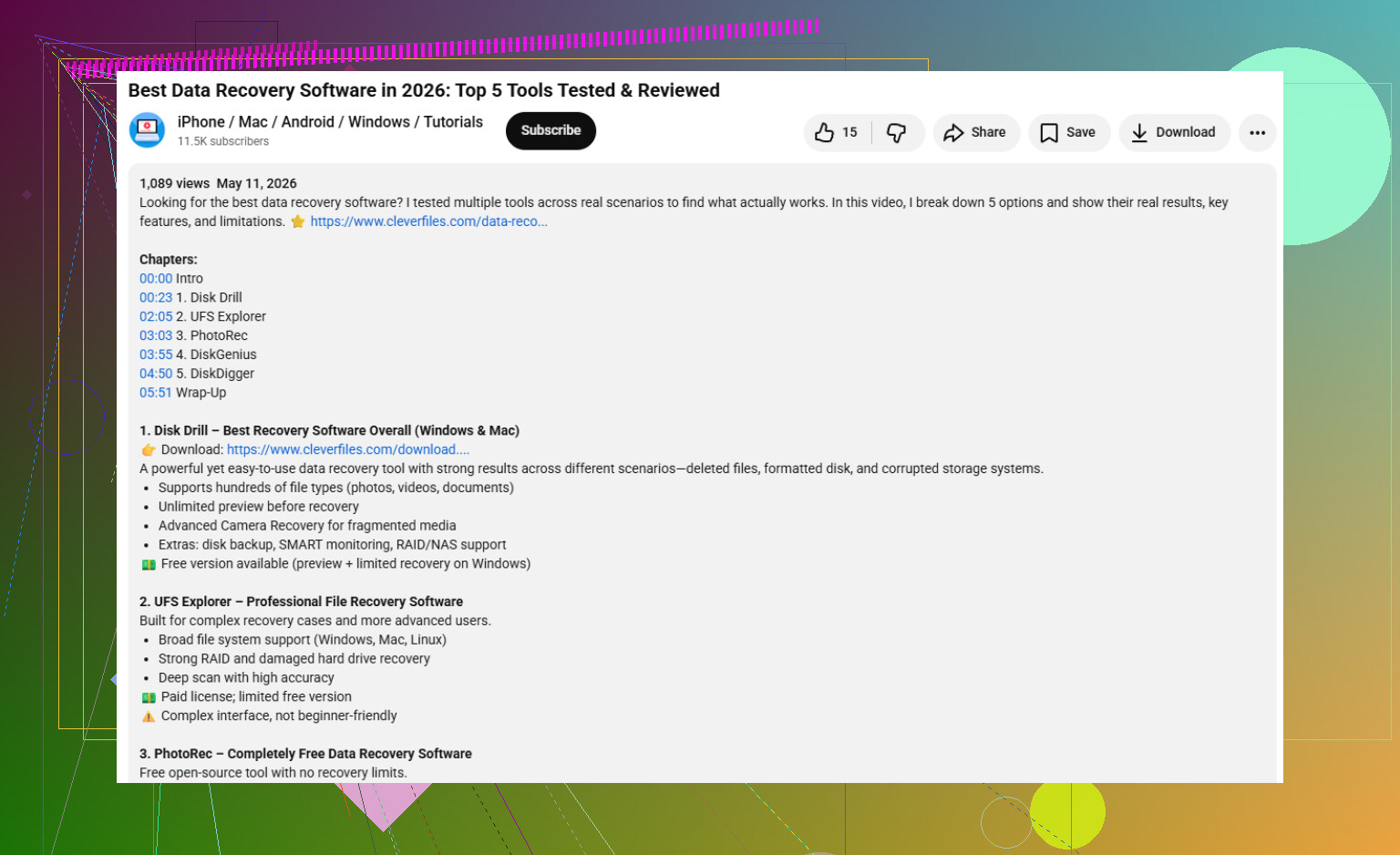
If you want a simple guide to choose reliable data recovery software for your own needs, this is actually useful: how to pick the right data recovery software
If the drive starts slowing to a crawl, dropping offline, or making weird noises, DIY is probly over. At that point software isn’t failing, the hardware is.
Not hopeless, but I’ll push back on one thing a bit: people often focus too much on the bad sector count and not enough on drive behavior. A drive with a few bad sectors that reads steadily can still give you a decent recovery shot. A drive with only “some” SMART warnings but constant freezes is often the more dangerous case.
I’m with @cazadordeestrellas, @viajantedoceu, and @mikeappsreviewer on the big picture: software can recover around bad sectors, but it cannot invent data that is physically unreadable. Where I slightly disagree is the idea that SMART tells the whole story. I’ve seen ugly drives with “acceptable” SMART and healthy-looking drives that were already falling apart.
My rule is simple:
- If files fail randomly but the drive stays detected, software still has a chance.
- If the drive vanishes, clicks, or hard-locks the system, software is living on borrowed time.
One extra thing to consider: sometimes the filesystem metadata is what got hit, not the file contents. In that case, your documents or photos may still exist on disk, but the folder structure is broken. That’s where recovery tools can do better than a normal copy, because they scan by signatures instead of trusting the damaged file table.
Disk Drill is a reasonable option here.
Pros
- good at reading failing media without acting like a basic file copier
- can recover from images, which is safer than hammering the original disk
- straightforward enough if you are not using pro lab gear
Cons
- if damage is physical and severe, it will not perform miracles
- deep scans can still take forever on unstable drives
- recovered filenames/folders are not always preserved perfectly in rough cases
So yes, software can help, especially if the unreadable spots are limited and your important files are not sitting right on top of them. But if the bad sectors overlap critical parts of a ZIP, PST, VM, or database, recovery may be technically “successful” while the file is still unusable. That’s the part people only learn afterward.