I accidentally deleted a partition in Disk Management while trying to reorganize my drive, and now the space shows as unallocated. It had important files on it, and I have not saved anything new to the drive because I am worried about making recovery harder. I need help figuring out the safest way to restore the deleted partition or recover the data before I lose it for good.
I messed this up once myself, so first thing, don’t write the drive off yet. Deleting a partition usually removes the partition record, not the files sitting underneath it. A lot of the data is often still there, untouched, until something new gets written over it.
The part where people make it worse is right after the deletion. Stop using that disk. Don’t create a new volume. Don’t format the empty space. Don’t dump files onto it. Every write raises the odds of overwriting what you’re trying to save.
Open Disk Management and look at how the drive shows up. If the partition still exists and only lost its drive letter, you might get away with assigning a letter and calling it a day. If Windows shows the area as Unallocated, I’d skip the repair experiments at first and pull the data off before doing anything else.
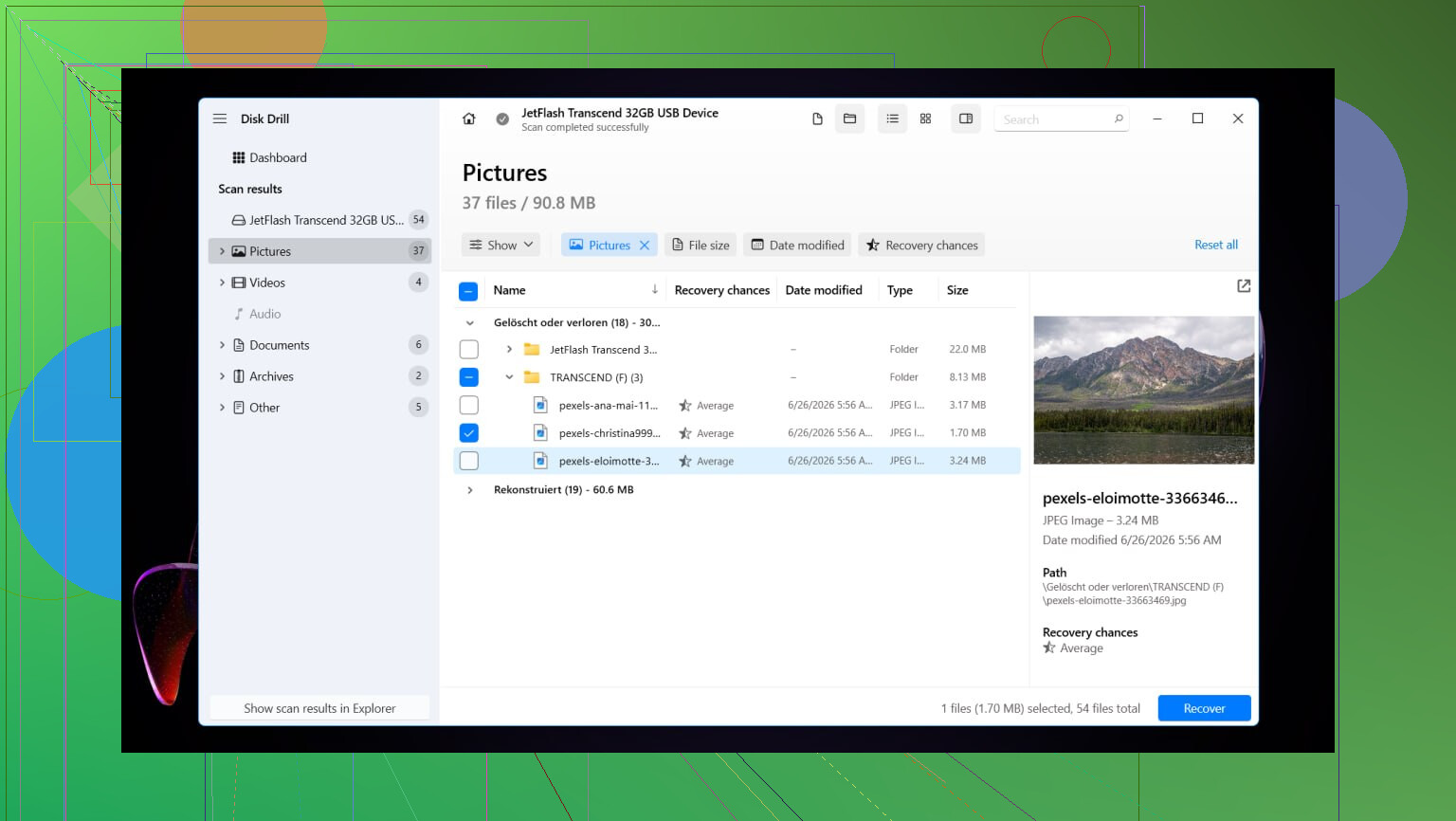
What worked for me was Disk Drill. It found deleted partitions, and in my case it also kept folder names and filenames instead of dumping everything into a mess. That mattered more than I expected.
Here’s the short version of the recovery flow:
- Install Disk Drill onto a different drive, not the one with the deleted partition.
- Start it, then pick the physical disk where the partition used to live.
- Hit Search for Lost Data. On some external drives it asks which scan type you want. I’d pick Universal Scan in most cases. If the source was a camera card or drone footage, use Advanced Camera Recovery instead.
- Let the scan finish. If it detects the missing partition, open it and check the contents.
- Preview a few files before recovering anything. I always test random stuff, docs, photos, one bigger file, so I know the result isn’t junk.
- Select the files or folders you want, then click Recover.
- Save everything to another disk. Not the original one. I know this sounds repetitive, but this is where people nuke their own recovery.
After your files are safe, you’ve got two paths. If you want the old partition layout back, try TestDisk. If you only care about getting the drive usable again, making a fresh partition in Disk Management is usually faster and less annoying.
I did this on Windows 11. Windows 10 is close enough where the same steps still apply. Menus shift around a bit, but not in any way that matters.
Restore the old partition with TestDisk
If your goal is to bring the deleted partition back as if it never vanished, TestDisk is the free tool I’d look at first.
- Download TestDisk, extract it, then run testdisk_win.
- Choose Create so it makes a log file.
- Select the physical disk where the partition was deleted.
- Leave the detected partition table type as-is unless you know it’s wrong.
- Pick Analyse, then run Quick Search.
- If nothing useful appears, run Deeper Search.
- When the missing partition shows up, highlight it and choose Write.
- Approve the change, then restart the PC.
If the partition table wasn’t trashed too badly, the partition often comes back after reboot. I’ve seen it work cleanly, and I’ve seen it half-work, so I’d still keep the recovered files somewhere safe first. Safer taht way.
Or rebuild the partition and move your files back
If you already pulled the data off and want the drive usable again, this route is easier.
- Press Win + X and open Disk Management.
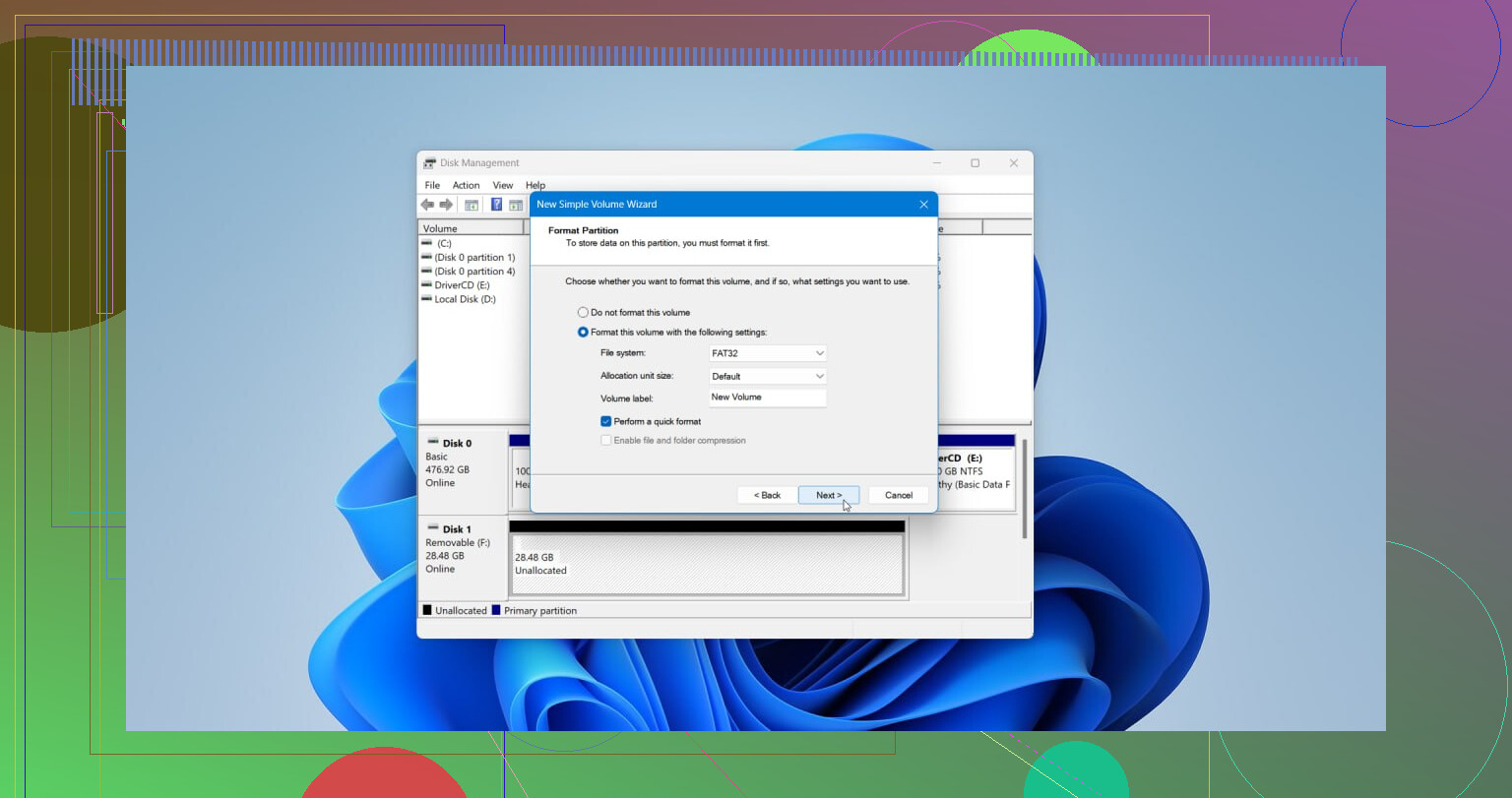
- Right-click the Unallocated area and choose New Simple Volume.
- Walk through the wizard. Set the size if needed, assign a drive letter, then choose NTFS or another file system if your setup needs something else.
- Leave Perform a quick format checked, then finish.
Once the new partition is in place, copy the recovered files back over and check a few of them before you call it done.
1 Like
Yes, if the space only shows as Unallocated, your files often still exist. Deleting a partition usually removes the map, not the data blocks. You did the right thing by not writing anything new.
I’d add one thing to what @mikeappsreviewer said. Before trying partition repair, make a sector-by-sector image of the whole drive if the files matter a lot. Use something like HDD Raw Copy Tool or ddrescue. Work from the image, not the original. If recovery goes sideways, you still have one clean shot left. A lot of people skip this and regret it.
My order would be:
- Check SMART health first. If the drive has errors, clone it first.
- Scan the disk with Disk Drill or another recovery tool and recover important files to a different drive.
- If the files look intact, then try partition restoration.
- Only rebuild the partition after your data is safe.
I slightly disagree with trying fixes too early. If the partition table is damaged in more than one spot, writing changes back to disk can make later recovery harder. Data first, repair second. Safer plan.
If you want a quick visual guide, this Windows data recovery video guide is easy to follow.
Also, if the deleted partition was BitLocker-encrypted, recovery gets trickier. You’ll need the recovery key, and file recovery tools might show raw data until the volume structure is restored. People miss taht detail a lot.
So yes, restore is possible. Stop using the drive, image it if the data matters, recover files with Disk Drill first, then worry about bringing the partition back.

Yes, deleted partitions can often be restored, but I’d be a little more conservative than @mikeappsreviewer and @vrijheidsvogel on one point: I would not rush to write a recovered partition table back unless the data is already backed up somewhere else.
If Disk Management shows pure Unallocated, that usually means the partition entry is gone, not neccessarily the files. That is why people sometimes get almost everything back. The danger is doing “just one small fix” and accidentally making the disk harder to recover.
My take:
- If the files matter, disconnect the drive until you’re ready.
- If it’s an external drive, plug it into another PC and scan it there.
- If it’s the system drive, ideally boot from another disk or USB environment to avoid background writes.
- Recover the important stuff first, then worry about restoring the old layout.
Disk Drill is a solid option here because it can scan the physical drive for lost partitions and existing file system traces, not just obvious deleted files. That matters when a partition was removed in Disk Management and the space turned unallocated. I’d use it for data recovery first, even if partition restoration is technically possible.
One thing people don’t mention enough: check whether the deleted partition was NTFS, exFAT, or BitLocker. If BitLocker was involved, you may need the recovery key before anything useful happens. Without that, results can get real messy real fast.
Also worth reading: deleted partition recovery tips that actually help
So yeah, recovery is absolutely possible. Just don’t let Windows “help” you by creating a new volume too soon. That’s how a bad day becomes a worse one.