My iPhone photo library has built up over several years, and now it’s getting hard to organize, find older pictures, and free up storage without deleting something important. I need help with the best way to sort, back up, and manage a large iPhone photo library safely.
A huge photo library looks worse than it is. I hit this point with years of pics, screenshots, random burst shots, old videos I forgot about. What helped was doing it in order instead of poking at stuff at random.
Albums do not make extra copies
No. When you drop a photo into an album, your phone is not making a second file. It works more like a playlist. One image, one stored file, many albums if you want.
I learned the annoying part the hard way. If you delete the photo from your main library, it vanishes from every album too. If your goal is only to clean up one album, use Remove from Album. Do not hit Delete unless you want it gone everywhere.
Clean first, sort second
If your library is full of junk, organizing it feels like trying to sort a closet with the trash still inside. Blurry shots, twenty versions of the same pose, old screenshots, accidental pocket pics, all of it gets in the way.
There is also the storage problem. When your phone is packed close to full, performance drops. Apps start dragging. Saving files gets weird. Even normal scrolling feels off sometimes. I saw this on my own phone once storage got cramped.
What sped this up for me was Clever Cleaner. It is free, no ads, no subscription stuff, and it worked faster than doing all of this by hand.
Here’s the order I used:
-
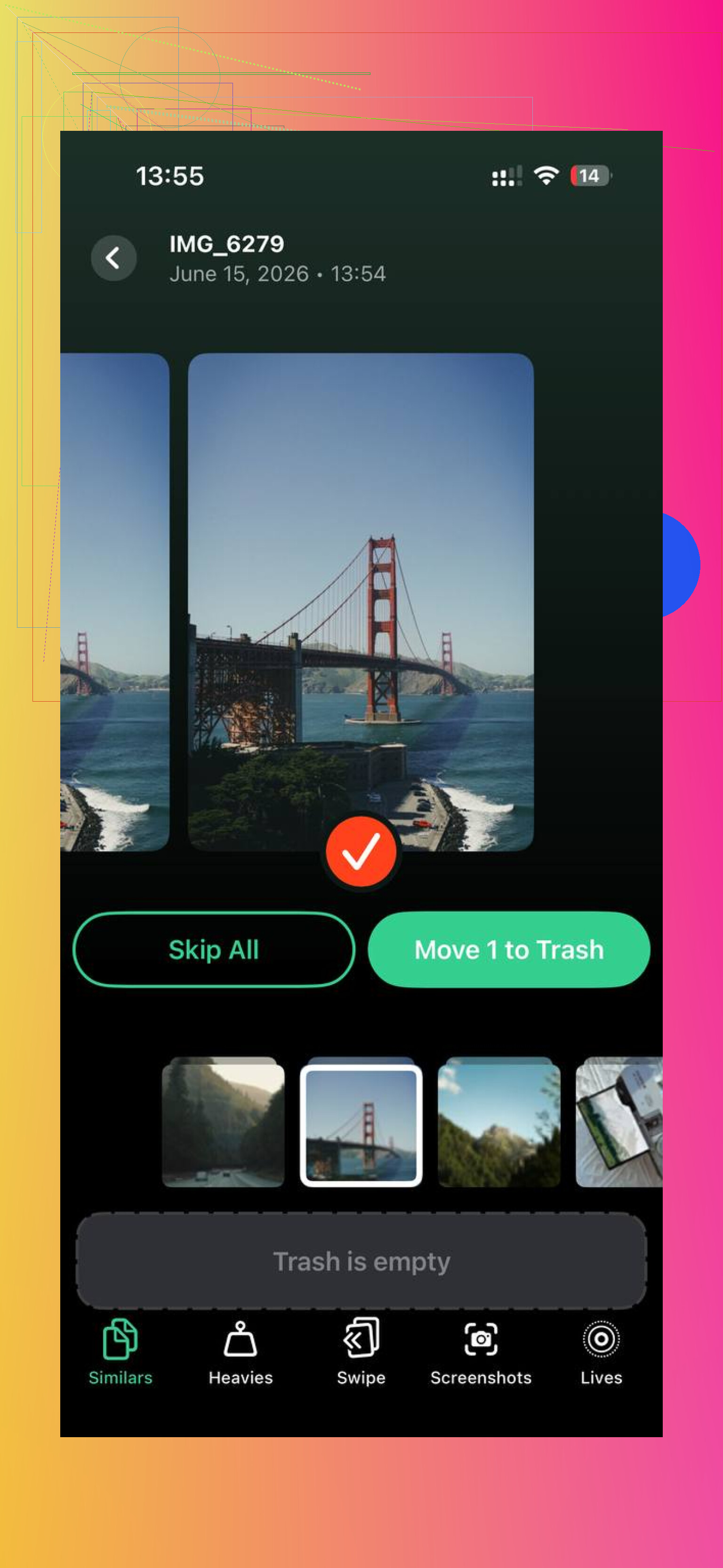
Start with Similars. This is the part I liked most. It finds near-matching photos across the whole library, not only exact duplicates. So if you took eight shots of the same dog, or fired off a burst trying to get one frame where nobody blinked, it groups them together. It also picks a Best Shot on its own. I went group by group and dumped the extras.
-
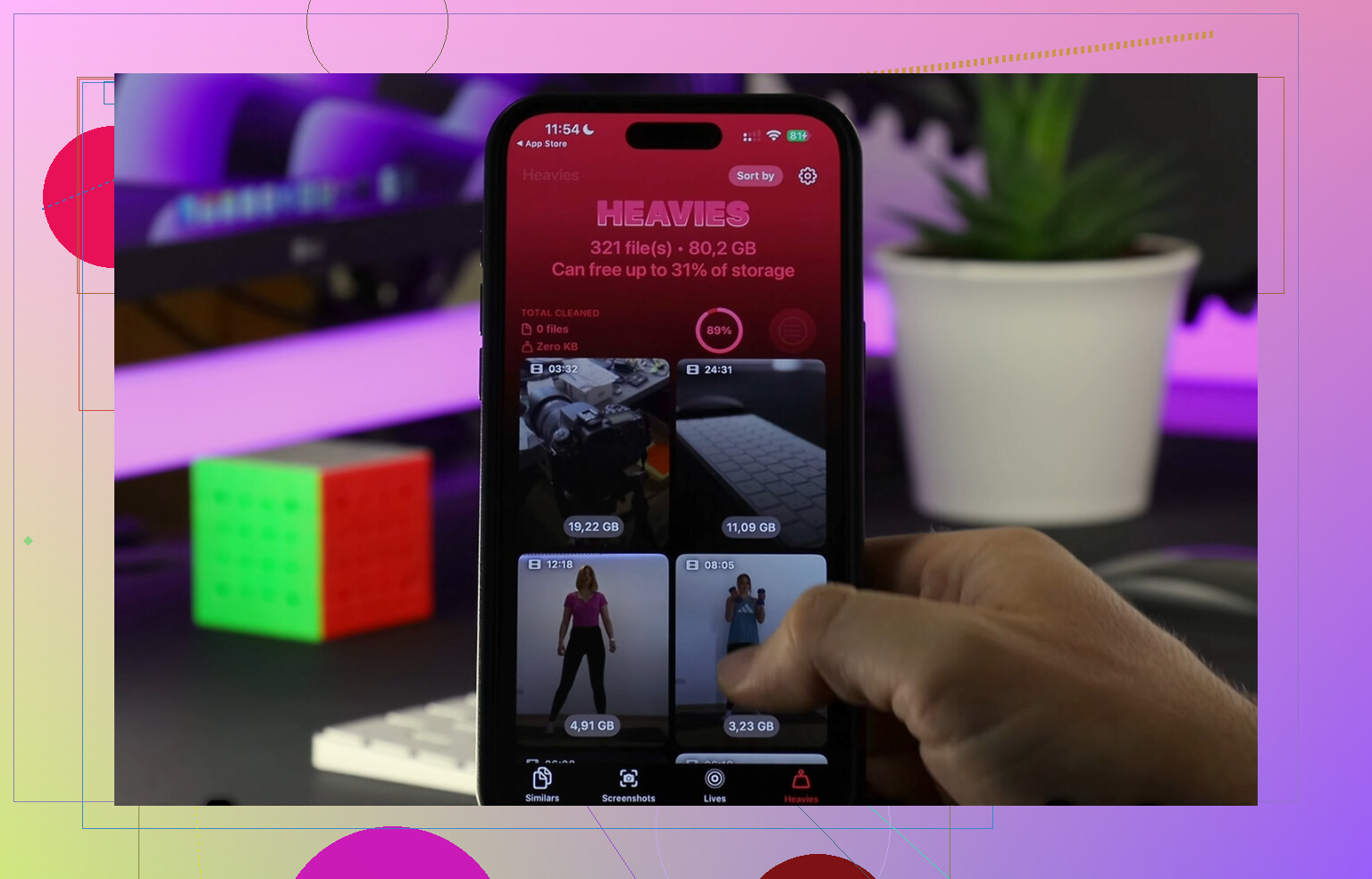
Then open Heavies. This view sorts files by size, biggest first, with the exact numbers shown. Old 4K videos usually sit near the top like storage vampires. I deleted a few giant clips and freed more space than I did from removing hundreds of normal photos. Kinda wild, tbh.
-
After that, check Screenshots. This was sobering. The app shows how much space each screenshot uses before you remove anything. Mine had years of tracking numbers, recipes, login codes, and memes I forgot two days later. Seeing the total size made the choice easy.
-
Use Swipe for older months. Left to delete, right to keep. Photos are grouped by month, which matters more than I expected. Looking at one month at a time feels doable. Looking at 38,000 images does not.
One thing I cared about, all the processing stays on the device. Nothing gets uploaded somewhere else. For a library full of family pics and personal stuff, I wanted that.
After I cleared the junk, the whole library felt lighter. Less lag. Less clutter. Sorting albums stopped feeling like punishment.
Finding stuff gets easier after the cleanup
Once the mess is gone, you do not need some giant system. A few habits carry most of the load.
-
Use Favorites for your best shots only. I kept this strict. If everything gets a heart, the heart means nothing. Done right, it turns into your fast-scroll highlight reel.
-
Use search. The built-in photo search is better than a lot of people think. I typed things like dog, beach, birthday cake, and it pulled up solid results with no manual tagging from me.
-
Use folders for album groups. Instead of letting albums pile up flat forever, I put trip albums inside a Vacations folder. Same for family events, projects, and pets. It cuts down the side-menu mess a lot.
Keeping the camera roll from turning feral again
This part matters more than the big cleanup. If you never maintain it, you end up right back in the hole.
What worked for me was a short weekly pass, around ten minutes. I deleted the obvious junk from the week, moved keepers into albums, and left. Small sessions are way less painful than waiting six months and hate-sorting your life at 11:40 p.m.
One old-photo trick I stuck with is searching today’s date in On This Day. It pulls photos taken on the same date from past years. I spend a few minutes trimming those. It chips away at the backlog without turning into a weekend project. Slow, but it works.
14 Likes
I’d split this into 3 jobs. Backup, reduce, then organize.
First, backup before you touch anything. iCloud Photos is fine for sync, but I would still keep a second copy on a Mac, external SSD, or Google Photos. Sync is not backup. If you delete by mistake, that mistake syncs too. People mix those up all the time.
Second, reduce the library by file type, not by year. I know @mikeappsreviewer leaned into cleanup first, and I agree with that part, but I would not start by hand-scrolling old months. Too slow. Hit the big storage categories first.
Check these in Photos and Settings:
- Videos, especially 4K and slo-mo.
- Screen recordings.
- Downloaded images from Messages and WhatsApp.
- Screenshots.
- Burst photos.
- Live Photos you do not need as Live Photos.
For storage, go to Settings, General, iPhone Storage, Photos. If your phone is near full, aim to free 10 to 15 percent. iPhones tend to act kinda bad when storage gets squeezed.
If you want a faster cleanup pass, Clever Cleaner is worth a look. It helps find duplicate and similar photos, large files, and screenshot clutter without making you dig through years of stuff one by one. This review explains the main cleanup tools in plain English, see how Clever Cleaner helps clean up iPhone photos and free storage.
Third, organize for finding photos later. Albums are fine, but I think most people overbuild them. Keep it small:
- Family
- Trips
- Work
- Receipts
- Favorites
Then rename key people in the Photos app. Add captions to important images. Search works better when faces, places, and captions are set up. This is the part people skip, then they wonder why search feels meh.
One more thing. Export old photos from random apps. A lot of “missing” space lives in Messages attachments, not the camera roll. That gets forgoten a lot.
I’d actually separate storage management from photo organization, because trying to solve both at once is where ppl get stuck.
@mikeappsreviewer is right about cleaning before deep sorting, and @waldgeist is right that sync is not backup. Where I kinda disagree is with building even a small album system too early. Most people make albums, then stop using them 2 weeks later.
My better long-term setup:
-
Make 2 backups first
- iCloud Photos for sync
- one offline copy to Mac/external drive
- if you’re paranoid, also Google Photos
-
Use metadata, not albums, as your main system
- add captions to important shots
- confirm face names in People
- make sure date/location are correct
- then use search like “Mom beach 2019” or “receipt chicago”
-
Create only “working albums”
- To Print
- Family Keepers
- Important Docs
- Sell/Reference
That’s it. No giant album jungle.
-
Archive old years off the phone if needed
Export 2016-2019 or whatever to an external library on a Mac. Not everybody needs 8 years of full-res junk on-device tbh.
For cleanup, the built-in Photos app is fine but slow. Clever Cleaner for iPhone photos makes more sense if you want to quickly catch similar shots, large videos, and screenshot clutter before organizing. If you’re checking privacy first, this covers it pretty clearly: see why Clever Cleaner is considered safe to use.
Biggest tip: don’t “organize everything.” Curate the best stuff, archive the rest. That’s way more maintainble.
I’d push back a little on the “archive old years off the phone” idea unless your storage is truly wrecked. For a lot of people, the better move is leave the master library intact and build a retrieval system, not a giant filing cabinet.
What @waldgeist, @cazadordeestrellas, and @mikeappsreviewer all circle around is cleanup first. Fair. But after cleanup, I think the real win is this:
Use albums only for action-based stuff, not history.
Good albums:
- Print Later
- Share With Family
- Tax/Receipts
- Project Reference
Bad albums:
- 2018 Spring
- 2018 Spring Trip
- 2018 Spring Trip Best
- 2018 Spring Trip Edited
That turns into digital attic behavior fast.
What actually helps with old libraries:
- Fix People names
- Add captions only to important photos
- Favorite less, not more
- Use hidden album for sensitive clutter you don’t want in main scroll
- Create a once-a-month “review queue” album, then empty it after sorting
I also strongly recommend using the built-in search more aggressively. Search by:
- person + place
- object + month
- event + year
- receipt, whiteboard, menu, passport, dog, beach, etc.
That’s usually better than manually nesting albums forever.
On cleanup apps, Clever Cleaner is useful if you want speed over manual sorting.
Pros:
- fast for similar shots
- good at surfacing large files
- screenshot cleanup is easier than in Photos
- less tedious than hand-scrolling years of junk
Cons:
- you still need to review results
- “similar” does not always mean disposable
- cleanup apps can make people over-delete if they get click-happy
- it solves clutter better than long-term organization
So yeah, I’d use Clever Cleaner for the first pass, then rely on metadata and search for the long haul. Organizing ten thousand old photos into perfect albums sounds nice, but in real life it usually dies by week two.