My old hard drive has started clicking, slowing down, and throwing read errors when I try to copy files. I’m looking for reliable hard drive repair or recovery software that can help me check the HDD health, fix bad sectors if possible, and recover important data before it completely fails.
If there’s anything on the drive you care about, don’t start “fixing” it yet. Get the data off first if Windows can still see the drive, even if it only shows up in Disk Management.
A lot of disk repair tools make changes to the file system, partition layout, or sectors on the drive. That can be fine for a purely logical problem, but if the drive is actually dying, extra writes and repeated scans can make recovery harder. So the safest order is usually: recover or copy files first, then worry about repair.
Also, disk repair tools are not all doing the same job. Some are meant for file recovery, some are for checking drive health, and some are better for bad sector testing. I wouldn’t expect one app to handle every situation well.
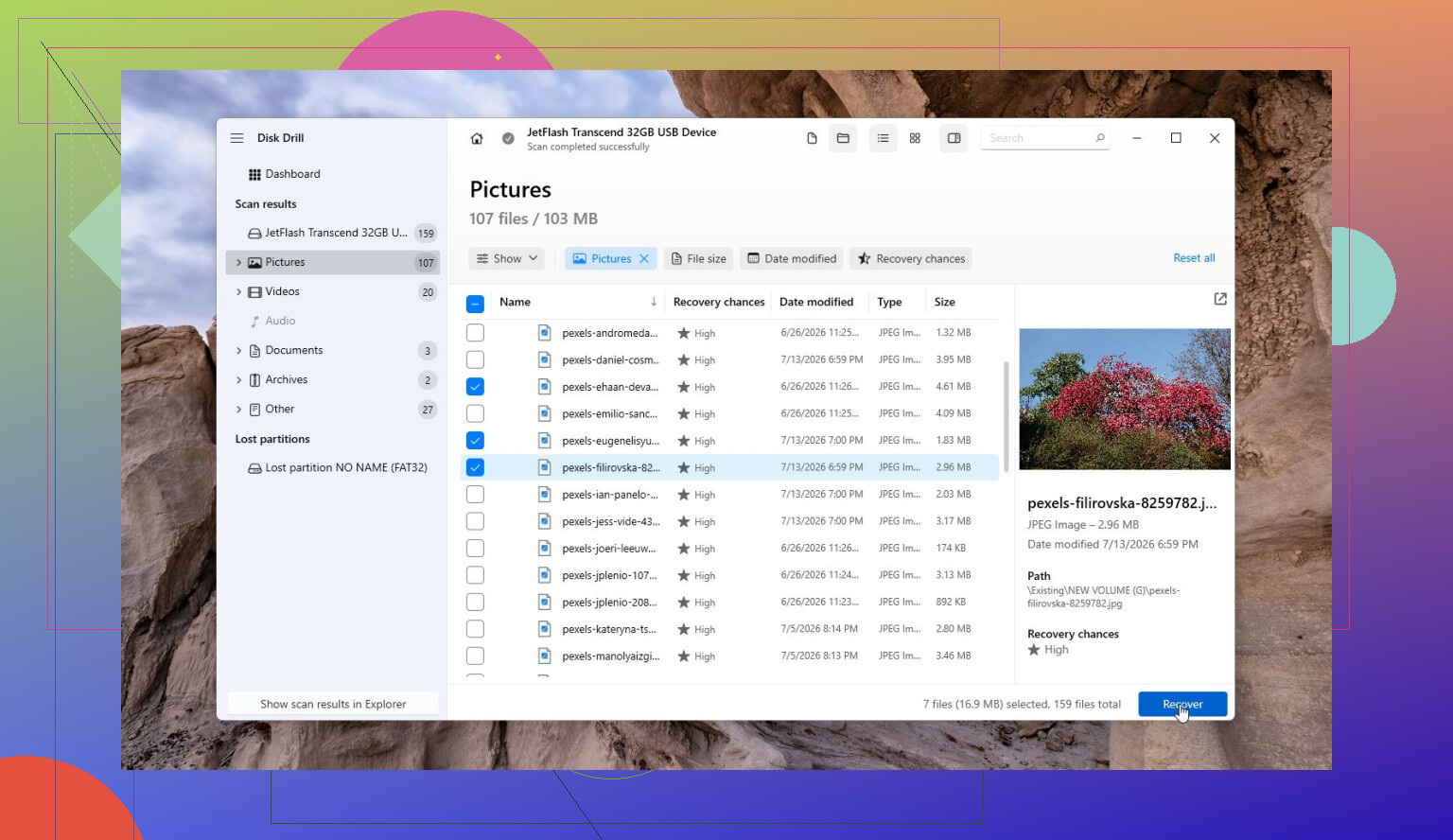
Disk Drill is the one I’d start with if the main goal is getting files back. It’s useful when a drive turns RAW, Windows wants to format it, or files vanish unexpectedly. The nice part is that it focuses on recovery before repair, and it can make a byte-to-byte image of a failing drive so you’re not working directly on the original. It also has S.M.A.R.T. monitoring, and the interface is pretty easy to follow.
Pros
- Easy to use.
- Good for RAW, formatted, and corrupted drives.
- Can create an image of an unstable drive before recovery.
- Includes drive health monitoring.
Cons
- It doesn’t repair partition tables.
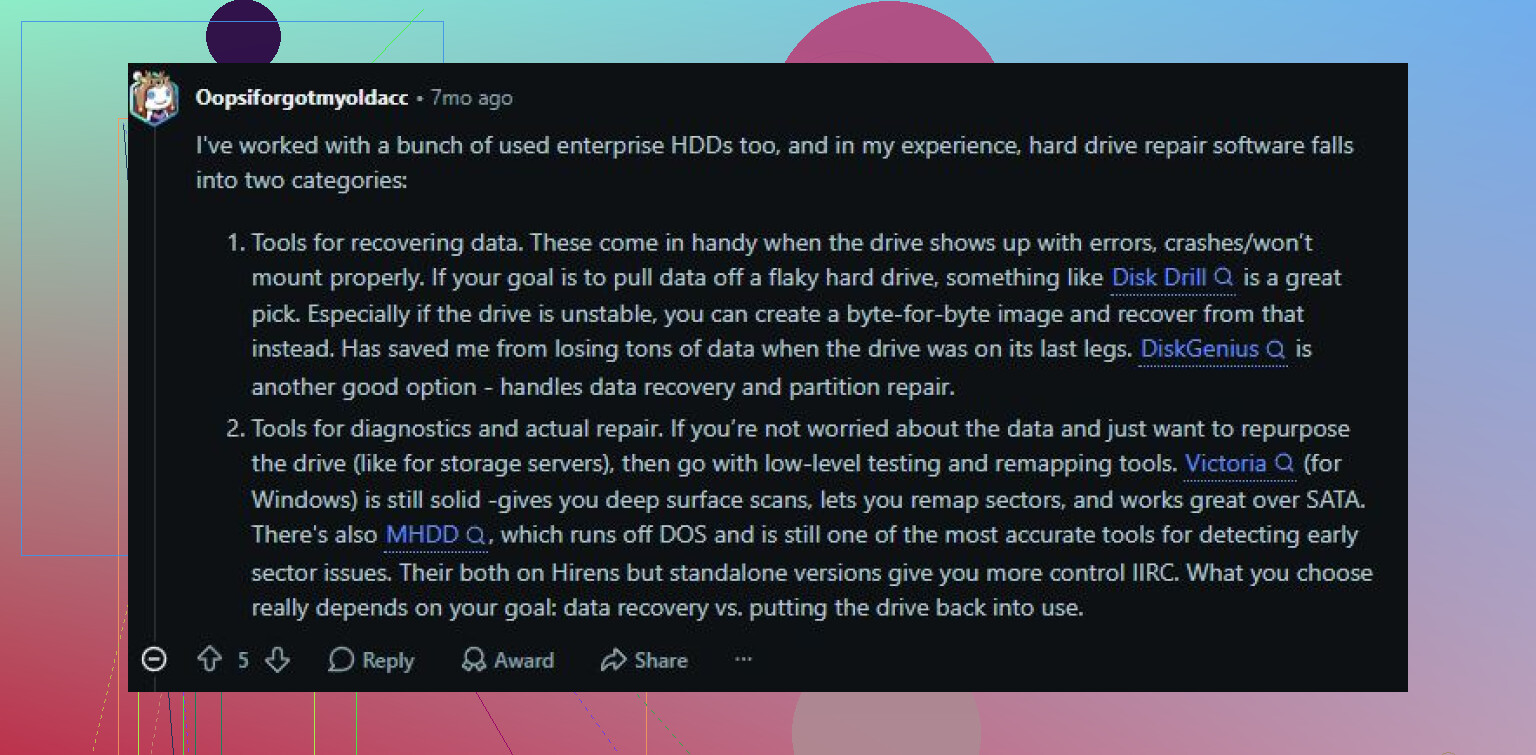
Victoria HDD/SSD is more for figuring out what’s wrong with the drive physically, especially if it has bad sectors or reads painfully slowly. It can run detailed surface scans, show weak or slow sectors, pull S.M.A.R.T. data, and attempt sector remapping. It’s not beginner-friendly compared with something like Disk Drill, but it gives you a much clearer picture of the disk’s condition. Just don’t treat remapping as a real fix for a failing drive. It only helps the system avoid damaged areas.
Pros
- Free.
- Strong bad sector and surface scan tools.
- Can remap unstable sectors.
- Shows detailed S.M.A.R.T. information.
Cons
- Harder to learn.
- Not for recovering deleted files.
Hard Disk Sentinel is what I’d use when the question is whether a drive is still trustworthy. It’s mostly a monitoring and diagnosis tool, not a recovery tool. It tracks S.M.A.R.T. data, temperatures, sector problems, and other warning signs, often before Windows complains about anything. Good choice for older HDDs, SSDs, USB drives, and RAID setups if you want to know when it’s time to replace something.
Pros
- Detailed drive health reports.
- Can warn you early about failing hardware.
- Supports HDDs, SSDs, USB drives, and RAID.
Cons
- No file recovery.
- No corrupted partition repair.
If the drive has bad sectors, clicking noises, random disconnects, freezes during reads, or S.M.A.R.T. values that keep getting worse, don’t waste a whole day throwing repair tools at it. Copy or recover the important files first, then replace the drive. Software can help with logical damage, but it cannot undo physical wear. And if the drive is not detected at all or is making obvious mechanical noises, stop using it and consider a professional data recovery service before the damage gets worse.
5 Likes
The connection matters here: a bad USB dock, loose SATA cable, or weak power brick can look a lot like a dying drive.
I agree with @mikeappsreviewer on imaging/recovery first, but before running Disk Drill or any scanner for hours, try the drive on a known-good SATA port or dock and copy only the most important folders first. If it still clicks there, stop treating it like a repair job.
A clicking drive is usually past the point where “repair software” is going to make it healthy again. I’d avoid CHKDSK, defrag tools, write tests, or anything that promises to fix sectors, because those can beat up the drive while it’s already struggling. If you want the cheap DIY route, clone/image it first with something like HDDSuperClone or ddrescue, then run recovery software such as Disk Drill against the clone or image, not the original disk. If the files are valuable enough that losing them would hurt, skip the experimenting and get a recovery shop involved before the clicking gets worse.
Do not keep rebooting the machine and letting Windows “try again” over and over. Every spin-up and every failed read can be one more shove toward the drive quitting completely, especially if it is clicking.
The thing people forget is that Windows itself is not passive. If you plug the drive in normally, it may start indexing, generating thumbnails, checking the recycle bin, scanning with antivirus, or asking to “repair” the volume. I would cancel every repair prompt. Don’t run CHKDSK because Windows suggests it. Don’t browse the drive casually looking around. Go straight for the most important data first, or better, make an image/clone and work from that.
If you only need a few folders and the drive still mounts, I’d copy the irreplaceable stuff in small chunks: documents, photos, accounting files, project folders, whatever matters most. Skip giant game folders, downloads, and replaceable media until later. A full recovery scan can take hours and may hammer weak areas of the disk before you’ve saved the files you actually care about.
Disk Drill is fine for the “recover from an image or clone” stage, especially if the file system is messy or the drive shows up as RAW. I just wouldn’t treat it, or any similar app, as magic repair software for a clicking HDD. The repair part is basically over once the drive is making mechanical noises. The practical goal is extraction, not making the old disk trustworthy again.
And please don’t do the freezer trick. It still gets repeated because it worked in some ancient edge cases, but condensation and thermal stress are a bad trade when the data matters. If the drive starts disappearing from BIOS, clicks repeatedly, or spins down during reads, stop there. At that point a recovery lab has a better chance before a bunch of DIY attempts turn a recoverable drive into a parts donor.