I accidentally formatted my pen drive before copying off important photos and work documents, and now I’m trying to find a reliable way to recover the lost files. I’d really appreciate advice on safe USB data recovery methods, software that actually works, and whether recovery is still possible after a quick format.
I did this once with a thumb drive full of work PDFs and family photos. Felt sick the second I clicked format. The part worth knowing first, formatting a USB does not always wipe the file data right away. A lot depends on what kind of format happened and whether you kept using the drive after.
First step, stop touching the USB.
Do not copy files to it. Do not format it again. Do not run CHKDSK. Do not try random “fix USB” guides from search results. Every write to the drive raises the odds of old data getting overwritten. After overwrite, recovery drops off hard.
One thing people get wrong all the time, there is no true “unformat” button. The format changed the file system layout. You do not reverse it. Recovery tools look for leftover file data still sitting on the storage and piece it back together. So the drive stays formatted, but your old files might still be there.
What happened during the format matters a lot:
- Quick format. Usually done in seconds. This is the one you want, if you had to pick. On Windows, it often rebuilds the file system records and leaves the file contents in place until something else writes over them. I’ve seen recovery go well here when the drive was left alone right after.
- Full format. Takes longer. Newer Windows versions write across the drive during this process. If you did a full format, software recovery tends to go badly.
- Format by another device. Cameras, TVs, dashcams, consoles, stuff like that often do a quick format. Not always, but often enough that recovery is still worth trying.
If you have no backup, I’d move straight to recovery software. I’ve had decent results with Disk Drill. It handles common USB file systems like FAT32, exFAT, and NTFS, and it sorts results in a way that saves time.
This is the order I’d use:
- Install Disk Drill on your computer’s internal drive. Not on the formatted USB. I know this sounds obvious, but people do it when panicking.
- Plug in the flash drive and open the app.
- Pick the USB from the device list.
- Start Search for Lost Data, then use Universal Scan if it asks. For formatted drives, this tends to be the right pass because it checks in more than one way.
- Wait for the scan to finish. You’ll see files show up early, then more later. I usually wait. The first screen is not the full story.
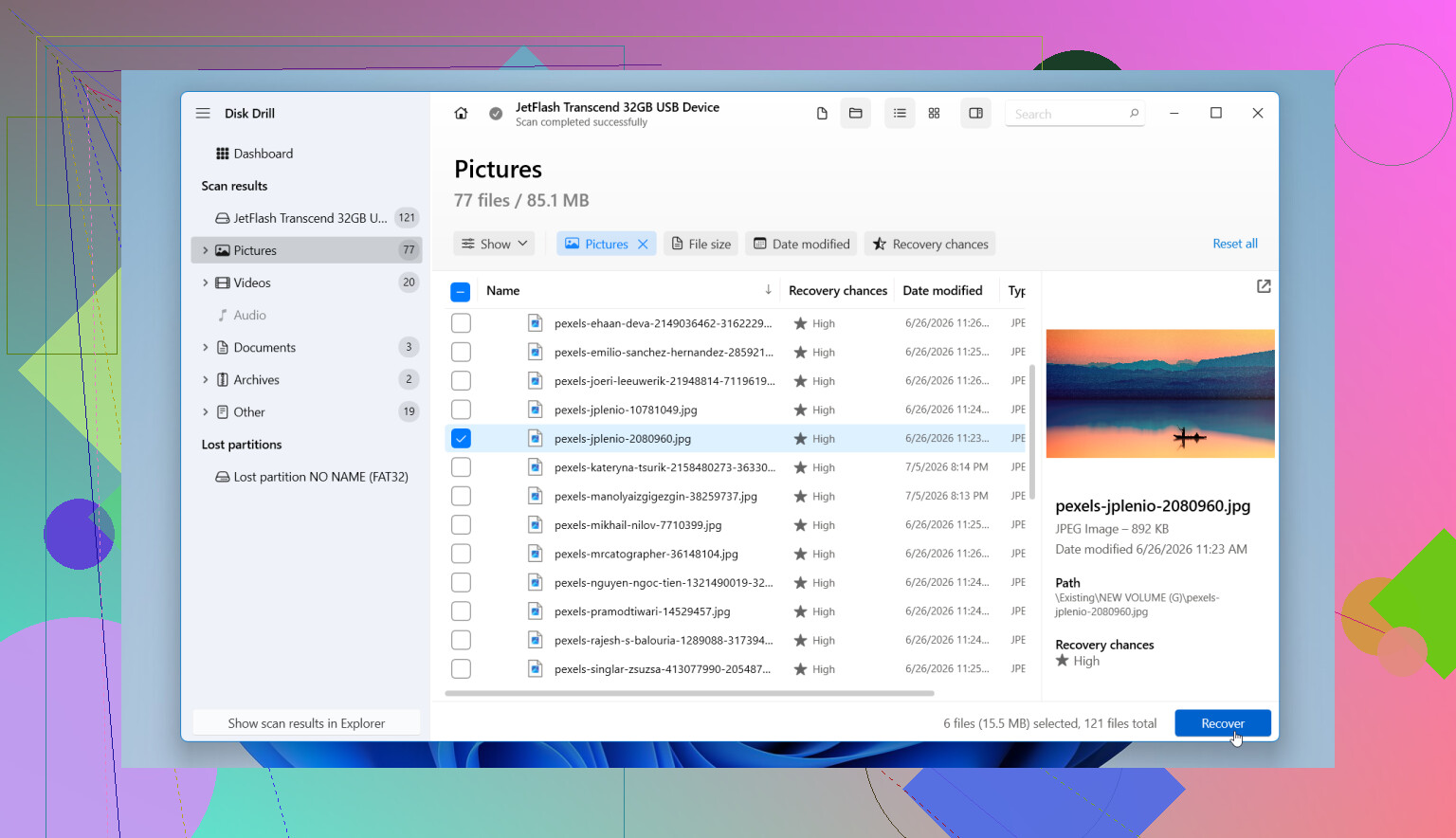
- Go through the found files by category. Pictures, videos, docs, audio, archives. Filter by size, date, or type if the list is huge.
- Preview the stuff you care about. If a photo opens, or a document preview looks normal, your odds are better for a clean recovery.
- Recover everything to a different drive. External SSD, internal disk, another USB, whatever. Do not save back onto the same flash drive. That mistake eats recoverable data fast.
If the USB is acting weird, create a disk image first. This part gets skipped too often. If the drive disconnects, throws read errors, freezes mid-scan, or feels unstable, scan the image instead of the original stick. I learned this one late, and yeah, I wish I had known sooner.
A lot of guides push Command Prompt fixes like CHKDSK and ATTRIB. I would not start there after a format.
- CHKDSK tries to repair file system problems. It is not a file recovery tool. On a damaged or freshly formatted drive, it might change structures you still needed for recovery.
- ATTRIB helps with hidden files. Good for files hidden by malware or bad attributes. Useless for files lost from formatting.
I’d only mess with those if the format never finished, or the drive glitched partway through and the file system got scrambled without a clean format completing. In most other cases, recover first. Repair later.
Also, watch for hardware failure signs. If the USB is not recognized, shows the wrong capacity, disconnects every few seconds, or has physical damage, this might be more than an accidental format. At that point, repeated scans and reconnects do not help much. If the data matters, a pro recovery shop is the safer move.
So yeah, there’s still a shot, especially after a quick format and zero reuse. Those are the two big factors, what kind of format happened, and whether anything got written to the drive afterward. If it was quick and you stopped right away, your odds are often decent. Not guaranteed, but decent.
4 Likes
If the format was quick, you still have a shot. If it was full, odds drop hard. I agree with @mikeappsreviewer on one thing, stop using the pen drive now. Where I differ a bit, I would image the USB first if the files matter more than your time. A raw backup gives you one stable source to scan again if the stick starts acting up.
Best route for home use:
- Plug it in read-only if your setup allows it.
- Make an image of the USB.
- Scan the image with Disk Drill or another recovery tool.
- Recover files to your PC or another drive, never back to the same USB.
Why image first. Cheap flash drives fail mid-read more often than people think. I’ve seen drives vanish after one long scan. One image saved the day, no joke.
Also, skip file system repair tools for now. They help with corruption, not post-format photo and document recovery.
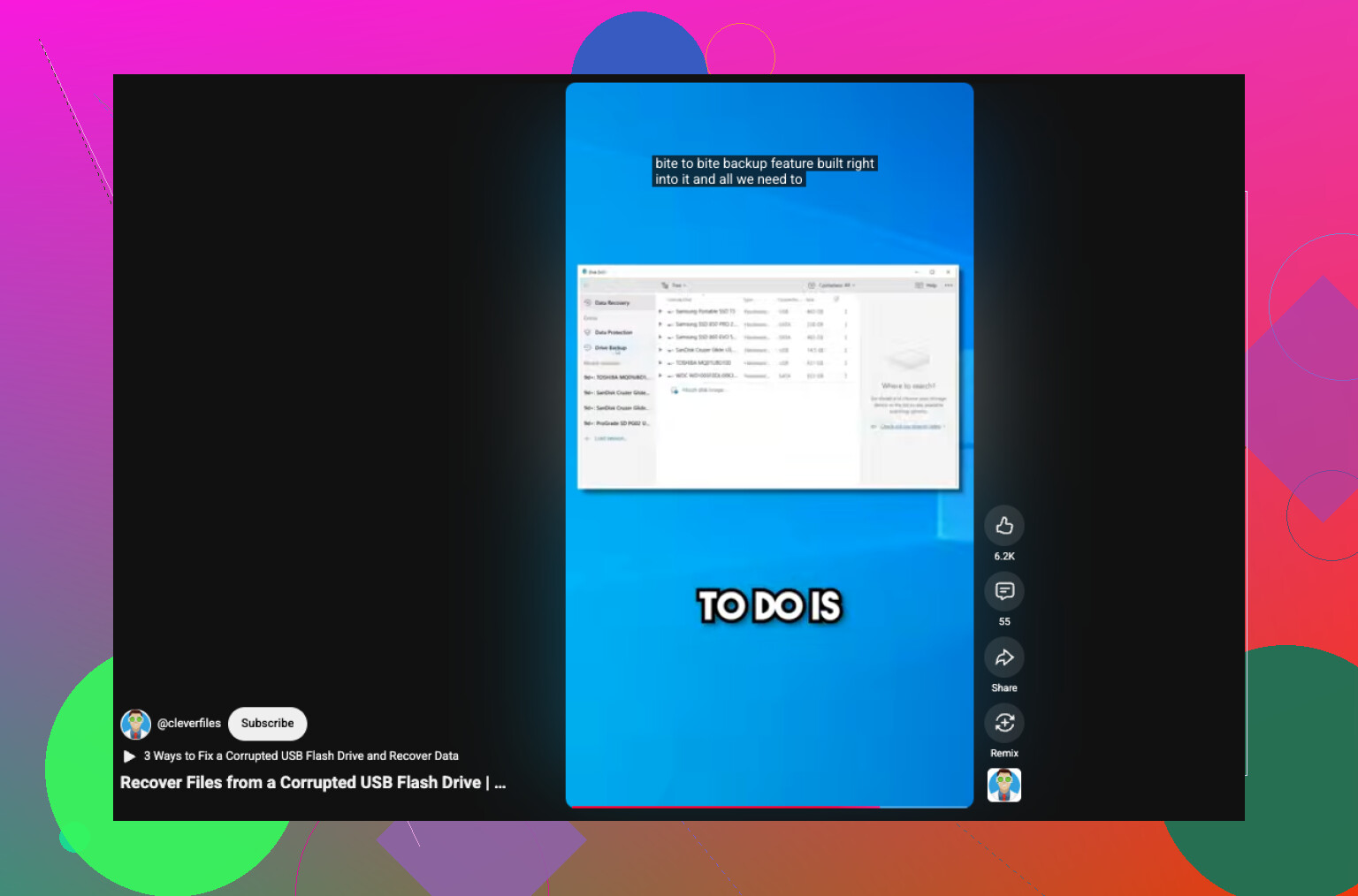
If you want a short walkthrough, this formatted or corrupted pen drive recovery video guide is easier to follow than most text guides.
If Disk Drill finds files with previews intact, that’s a solid sign. If the USB shows 0 bytes, wrong size, or keeps disconnecting, stop and go pro.
I mostly agree with @mikeappsreviewer and @espritlibre on the big rule: stop using the USB. But I’d push one extra point that gets missed a lot: check whether the recovered files are actually usable, not just recoverable.
A lot of tools can find filenames or fragments after a format, but photos may open half-gray, docs may be corrupted, and videos may be toast. That’s why preview support matters more than scan hype. Disk Drill is decent here because you can verify what’s real before dumping hours into recovery.
Also, don’t get too hung up on the phrase recover data from a formatted USB drive safely and easily. You’re not literally reversing the format. You’re trying to salvage leftover file data before it gets overwritten.
My take:
- if it was a quick format, chances are still okay
- if it was full format, software may find little or nothing
- if the USB is super cheap or old, recovery can get weird fast
One small disagree from me: imaging first is smart, but not always mandatory if the drive is stable and the data isn’t life-or-death important. For a normal healthy pen drive, scanning directly with Disk Drill is often fine and faster. If it starts disconnecting, making strange noises, showing wrong capacity, or hanging your PC, stop messing with it.
Also, avoid “free repair” tricks from YouTube. Half of them are basically speedrunning data loss lol.
Recover to another drive only. Not the same stick. Thats how people turn “maybe recoverable” into “definitely gone.”
One extra angle: check the USB controller behavior before doing anything heavy. If the drive suddenly reports the wrong size, flips from exFAT to RAW, or disconnects under load, that points to hardware or firmware trouble, not just a simple format mistake. In that case I’d avoid repeated full scans because each pass can be the one that finishes it off.
I slightly disagree with the “always image first” crowd. Good advice, yes, but on some flaky flash drives a long image job can fail earlier than a targeted recovery pass. If the stick is stable, try a selective scan for photos/docs first. If unstable, then image whatever you can.
On Disk Drill specifically:
Pros
- good preview support
- easy filtering by file type
- handles common USB formats well
- decent for quick-format situations
Cons
- deep scans can return messy filenames/folder structure
- full-format results are often disappointing, same as most software
- scanning large damaged media can take a while
So my order would be: verify the drive looks normal, run a recovery tool like Disk Drill, preview heavily, and recover only the important stuff first to another disk. @espritlibre, @cazadordeestrellas, and @mikeappsreviewer are all right about one key thing: the less you poke the USB, the better your odds.