I accidentally turned on Live Photo and now a large batch of pictures on my iPhone were saved that way. I want to remove Live Photo from multiple photos at once without editing them one by one, but I’m not sure what the fastest method is. I need help finding an easy way to bulk turn off Live Photos and save time.
I hit this a while back and it took me longer than it should have. I did not want my photos gone. I only wanted the Live Photo motion part stripped off so the library would stop wasting space.
At first I went looking in Photos for some bulk switch. Something like 'turn all Live Photos into stills.' I never found one. iOS handles one-offs fine, but bulk cleanup felt weirdly unfinished.
Figure out your end goal first
People usually mean one of two things when they ask this:
1. Remove the Live Photos completely.
2. Keep each picture, ditch the short motion clip.
Those are not the same job, so the steps change.
If you want them gone for good, the fast route is simple. Open the Live Photos album, select what you do not want, delete it, then empty Recently Deleted. If you skip the last part, your storage number will look stuck for a bit.
What I was trying to do
I wanted all the pictures kept, no exceptions. I only wanted the moving part removed.
You can do it by hand, one photo at a time, and sure, it works. I tried it. For a small batch, fine. For a few hundred, it turns into tedious tap-tap-tap work and gets old fast. I got annoyed around photo 40, if I'm being honest.
What ended up working for me
I used Clever Cleaner after I realized I had too many Live Photos to fix manually.
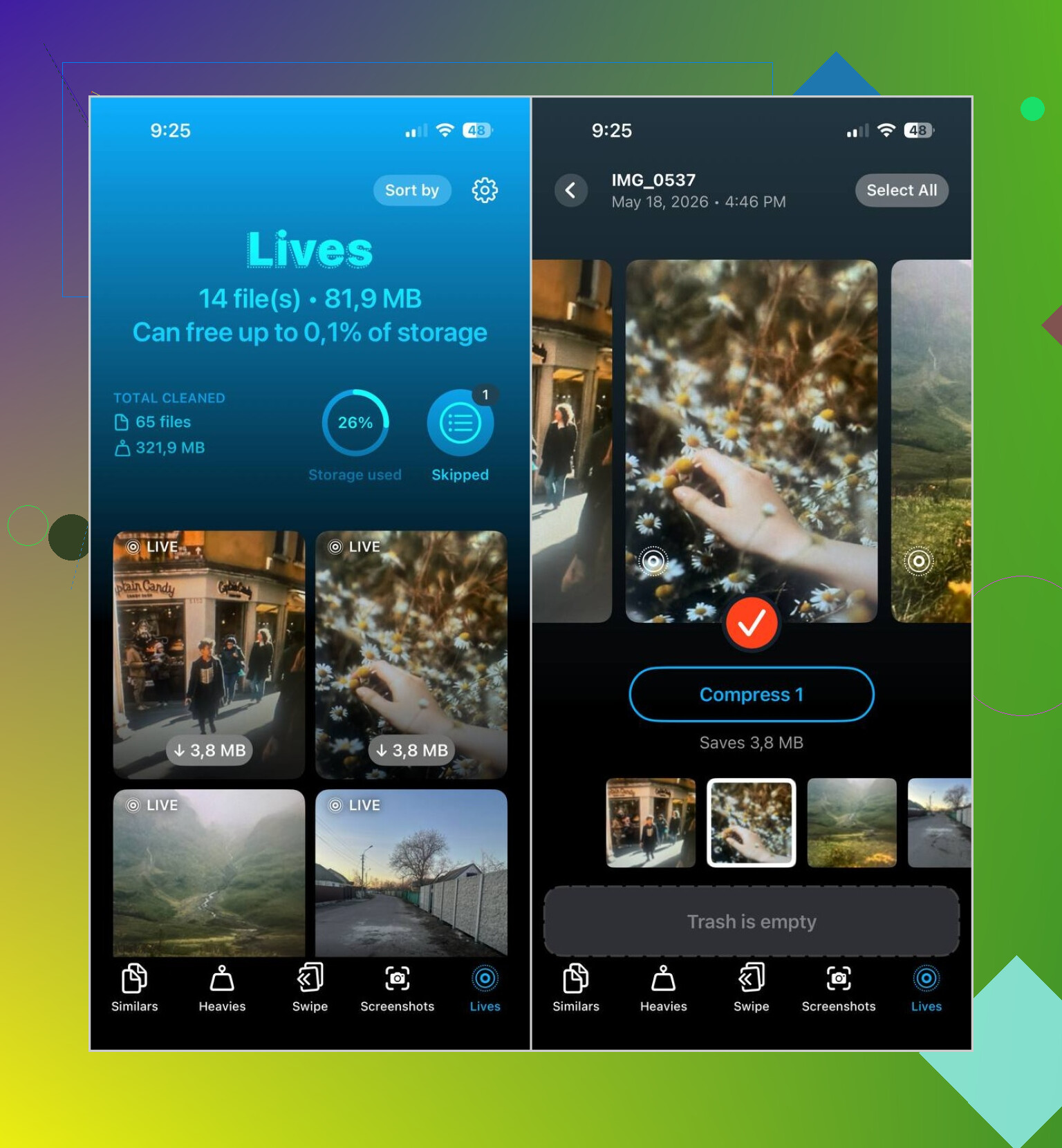
The part I liked was simple. It separates Live Photos into their own section called Lives. I did not have to scroll through years of random pictures trying to spot which ones had motion attached.
My rough flow looked like this:
- Open the Lives tab
- Sort them by date or file size
- Pick the ones you want to change
- Hit Compress
- Check the output
- Delete the original Live Photos if the still versions look right
One small thing tripped me up at first. The button says Compress, but in this case it is doing more than shrinking files. It turns the Live Photos into normal still images, then lets you decide whether to keep or remove the originals.
Other stuff I ended up cleaning too
I only grabbed it for the Live Photo problem, then I kept going because my library was messier than I thought.
Similars pulled up duplicate and near-duplicate shots, mostly from trips where I took five versions of the same thing and forgot about them.
Heavies was useful in a blunt way. It put the biggest videos at the top, and a couple old clips were eating multiple gigabytes by themselves. I would not have found those fast inside the normal Photos app.
Screenshots helped too. I wiped out years of junk screenshots in a few minutes. Old receipts, shipping updates, random settings screens, the usual mess.
What I’d do in your spot
If you only have a small batch, I’d stay with Apple’s built-in tools and do it manually.
If your library is packed with Live Photos and you want the images saved while cutting the motion part, I’d skip the hand-work. Clever Cleaner made it a lot less painful for me, mostly because the Lives section puts the problem in one place instead of making you hunt for it photo by photo.
7 Likes
iPhone does not give you a true batch switch for turning Live Photos into stills inside Photos. Annoying, but yep, taht is the main issue.
So your best options are:
- If you do not need those shots, bulk delete them from the Live Photos album.
- If you want to keep the image and remove the motion part, export or convert in bulk with a cleanup app.
I partly disagree with @mikeappsreviewer on one point. I would not spend time doing any manual cleanup first unless the batch is tiny, like 10 to 20 photos. Once you are into dozens or hundreds, manual editing is a waste of taps.
What worked better for me was using Clever Cleaner. It is faster when your goal is storage cleanup on iPhone without losing the photo itself. The useful part is sorting problem files into groups, so you are not digging through your whole library blind.
My advice:
- Back up first
- Filter your Live Photos
- Convert the batch to stills
- Verify results
- Remove the original Live versions
For storage, Live Photos often take around double the space of a normal still, sometimes more depending on length and quality. So if you have 300 Live Photos, the wasted space adds up prety fast.
If your bigger goal is clearing iPhone storage fast, this also helps:
smart ways to clear iPhone storage fast
Short version, no native bulk off switch. Use a batch tool like Clever Cleaner, or delete the Live Photos album items if you do not need them.
I’d add one thing to what @mikeappsreviewer and @waldgeist said: before you convert or delete anything, check whether those Live Photos are already synced to iCloud Photos and another device. Sometimes people “clean up” on the phone, then wonder why the same stuff vanished everywhere else. Apple’s sync is doing exactly what it’s supposed to do, which is also why it can feel kinda rude.
Also, I slightly disagree with the idea that storage savings are always huge. They can be, sure, but if your batch is mostly newer HEIC shots, the gain might be less dramatic than people expect. Still worth doing if you hate Live Photos, just don’t expect magic if your phone is packed mostly with video.
If you want a practical middle ground, duplicate a few samples first. Save a handful of Live Photos as still images, compare quality, then do the rest. That’s the safest way to avoid an “oh great, now I regret this” moment.
If you want a cleaner walkthrough for batch converting Live Photos into standard stills on iPhone, this is actually pretty readable:
batch convert Live Photos to still images and free up iPhone storage
Clever Cleaner makes sense if you’ve got a big pile of them and want to move faster, but I’d test on 5 to 10 photos first. Tiny bit of extra time, saves a lot of panik later.
No native batch toggle exists in Photos, and that’s the part I slightly disagree on with the “just edit a few manually first” advice from @mikeappsreviewer. If you already know you want all those Live shots flattened, sample-testing 3 to 5 is enough. Doing 20 by hand proves nothing except that Apple made this weirdly annoying.
One angle nobody’s really stressed enough: if these were taken recently and you still have the camera roll context, it may be faster to isolate them by date range instead of hunting inside the Live Photos album. That matters if only one accidental session had Live Photo enabled.
What I’d do:
- Duplicate a tiny sample and confirm you like the still result.
- Work by date batch, not whole-library batch.
- Keep originals until you verify metadata and image order stayed how you want.
Clever Cleaner is a reasonable shortcut here if you want bulk handling.
Pros:
- groups Live Photos clearly
- faster than one-by-one editing
- useful if you’re cleaning duplicates and large files too
Cons:
- still requires a review pass
- depends on a third-party app with full photo access
- savings may be underwhelming if Live Photos are not your main storage problem
So I’m with @waldgeist and @viajantedoceu on using a batch tool, but I’d be more selective than “convert everything.” If the accidental Live burst happened on one day, target that day only and avoid creating a second cleanup project for yourself.